6. Decky Loader
Installing Decky Loader
Almost all of your customization will be done through Decky Loader, a homebrew tool that adds a ton of functionality, features and plugins to Game Mode.
Decky Loader's github page lists a few ways of getting it installed, but the easiest one (assuming it works for you) is to open Konsole in Desktop mode and run this command:
curl -L https://github.com/SteamDeckHomebrew/decky-installer/releases/latest/download/install_release.sh | sh
You'll then be prompted for your password, and Decky Loader will download and install itself.
If there are no errors, you can reboot back into Gaming Mode for the rest of this section.
Using Decky Loader
You can access Decky Loader by pressing the ... button and navigating to the plug icon (usually at the bottom of the list):
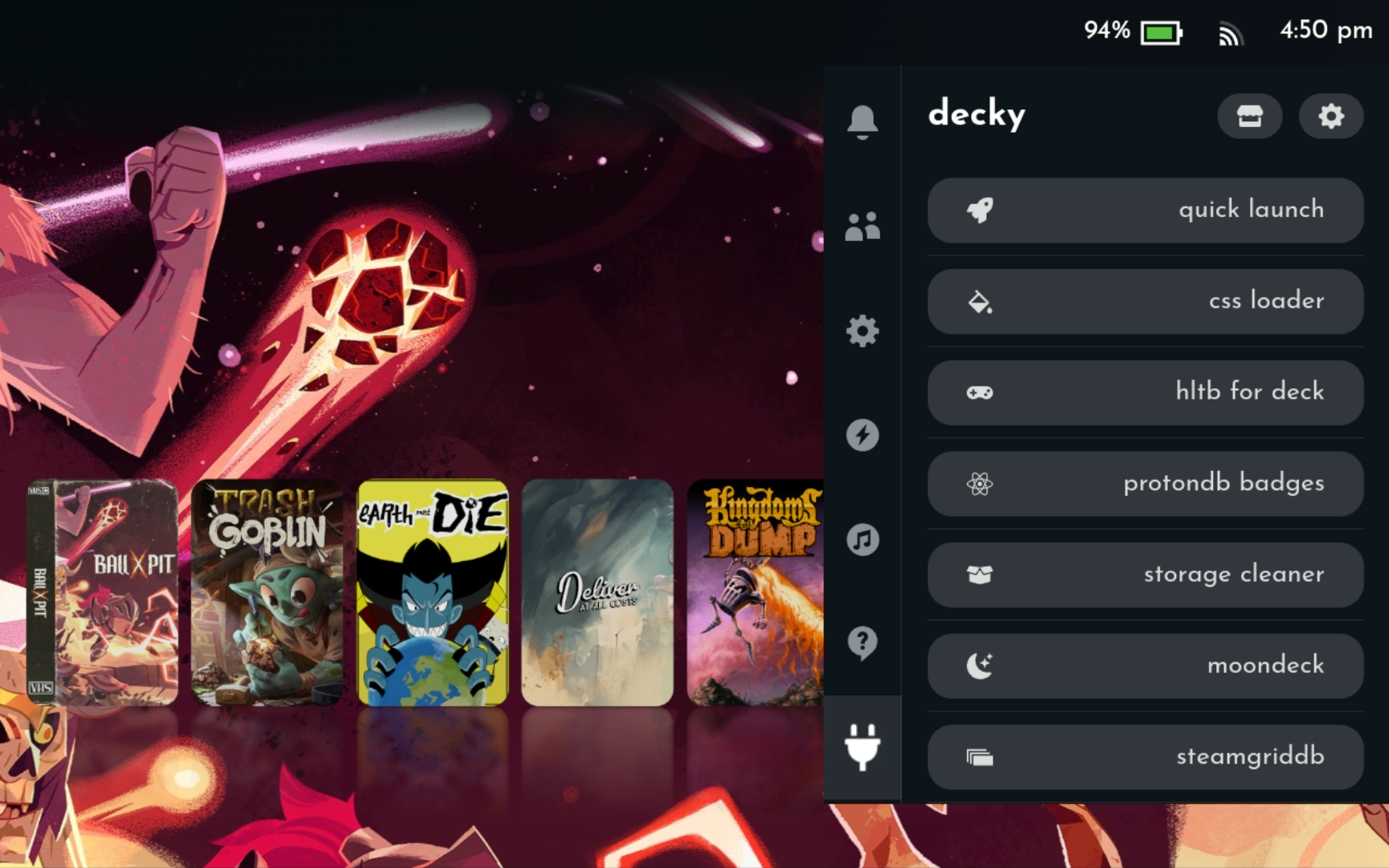
Out of the box, there won't be much here: you'll need to add some plugins to make use of Decky. You can find the plugin store by navigating to the storefront icon in the top right, to the left of the gear icon.
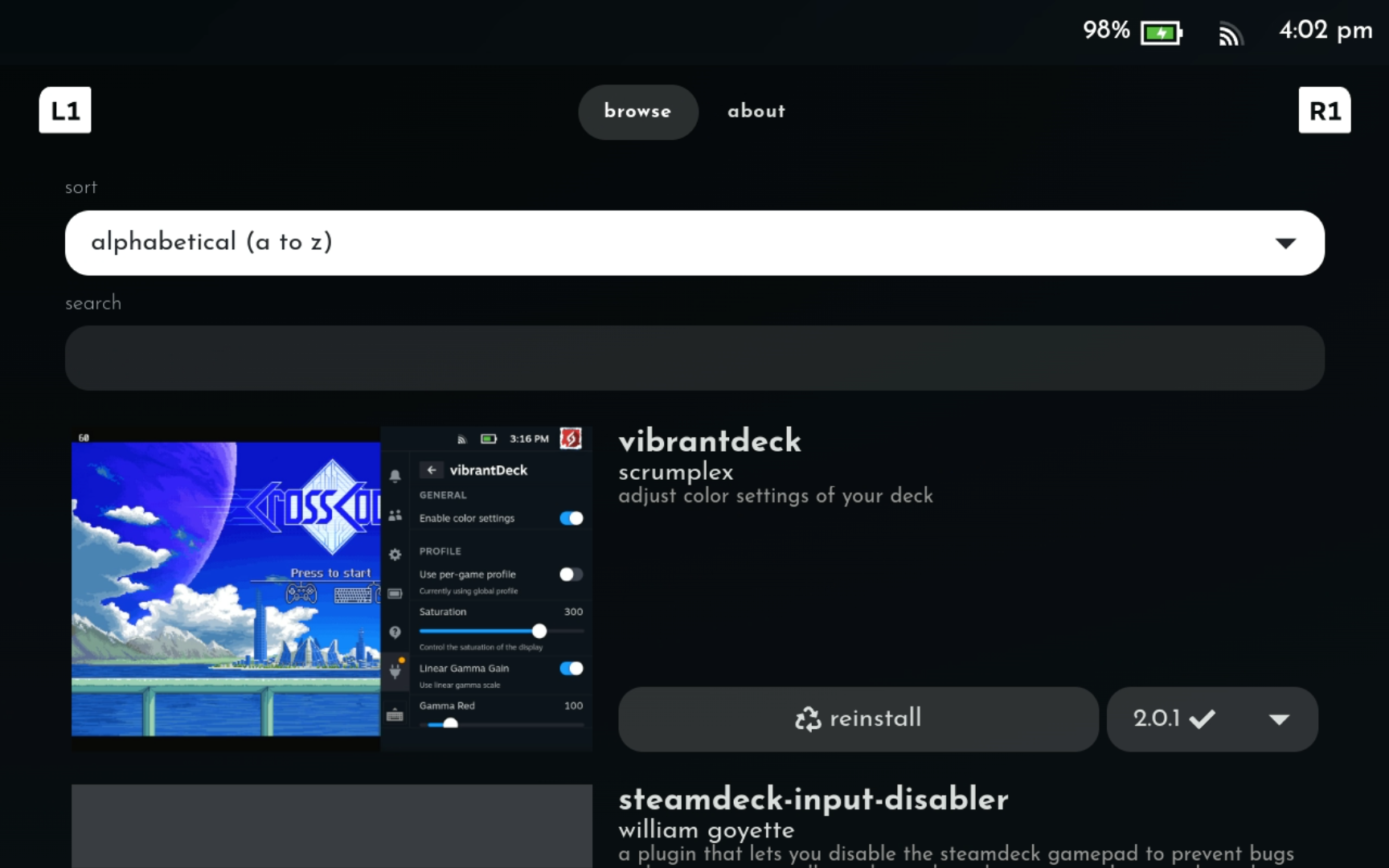
This takes you to the Decky Store where you can browse and install available Decky plugins that change or add themes, visual elements, and features:
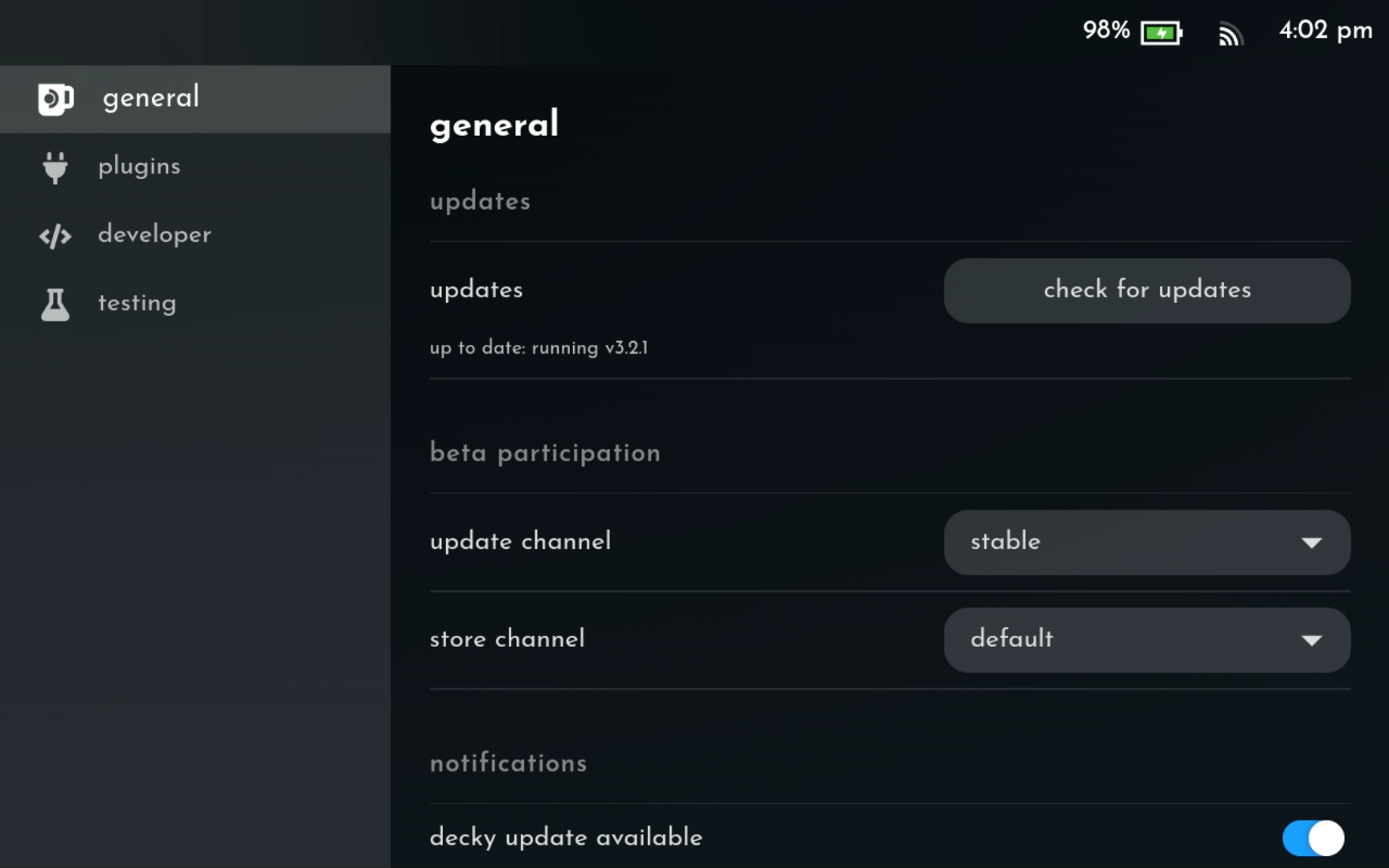
Under Settings (the gear icon) > General, you can check for updates to the Decky Loader mod itself and change beta update\store channels:
And under Settings > Plugins, you can see a list of your currently-installed plugins, where you can force-reinstall, uninstall and otherwise manage them:
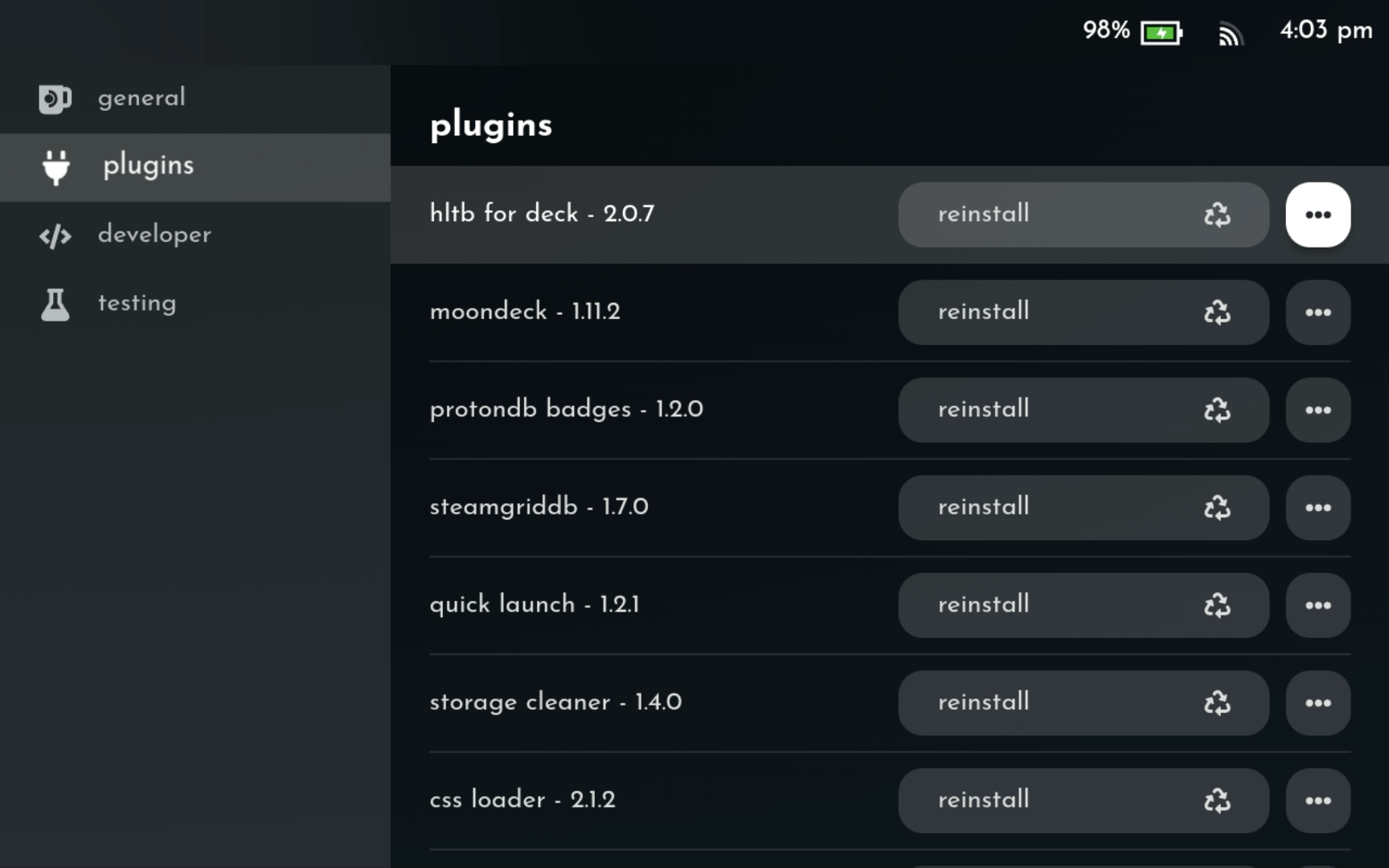
Decky Loader Plugins
There are TONS of available plugins here, but I should call out a few critical ones. I recommend you start with the following:
-
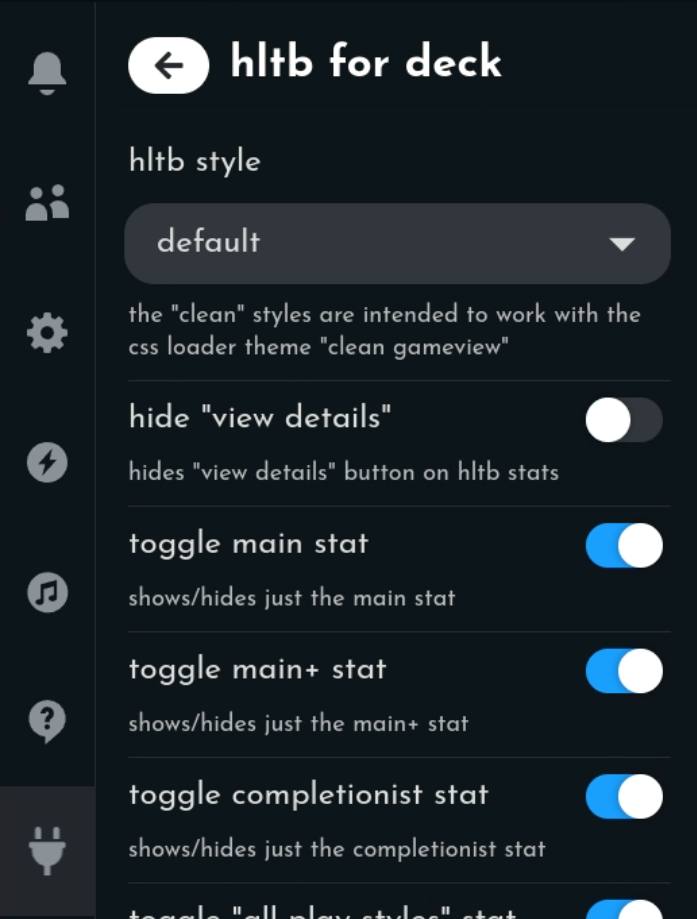
- HLTB For Deck
-
Adds details from howlongtobeat.com to each game entry.
-
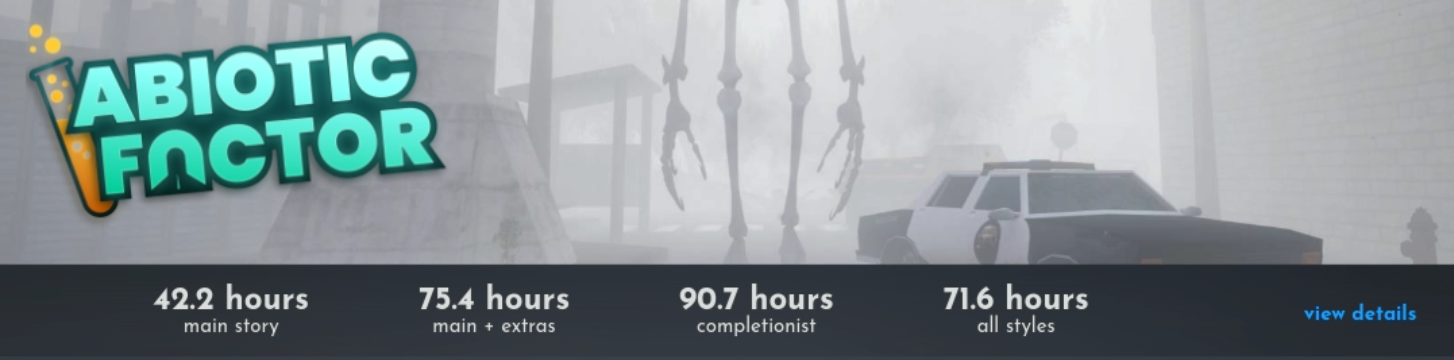
Often when I'm trying to decide on a new game, I'll look it up in HLTB to see what kind of time commitment I'm looking at. This adds HLTB's numbers for Main Story, Main Story + Extras and Completionist to a game's details page.
-
-
-
- Playtime
-
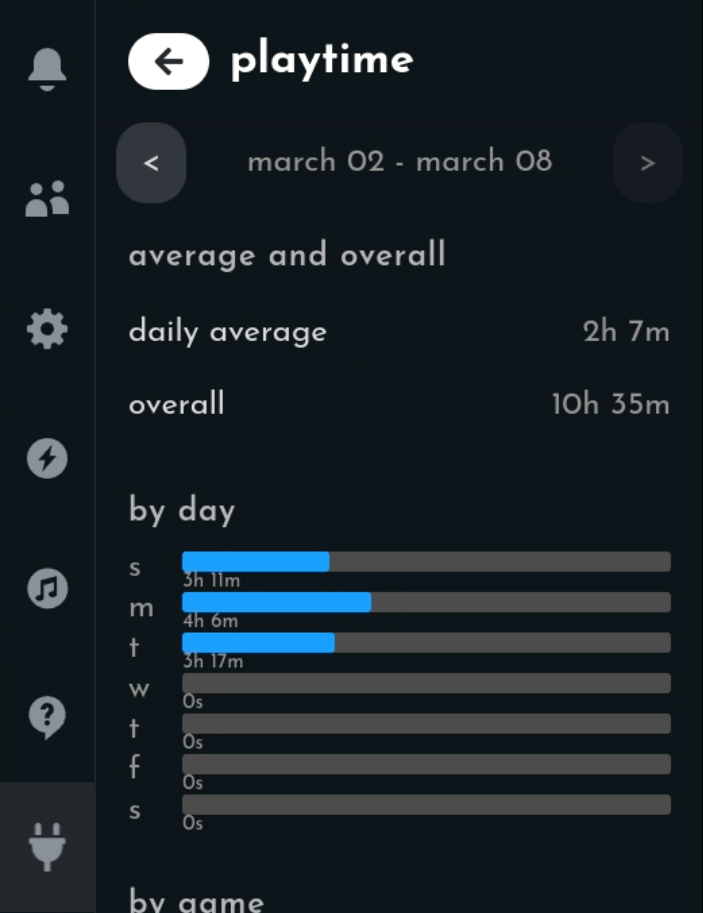
Adds your own playtime to each game entry.
-
Similarly, this keeps track of your own playtime in a game and shows it in the game's details.
-
-

-
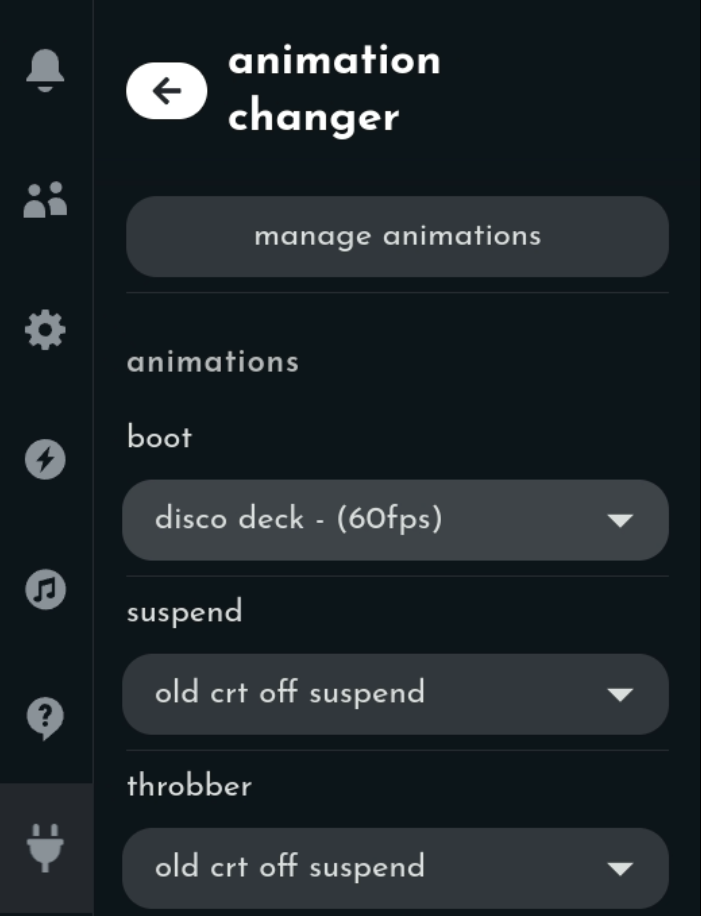
- Animation Changer
-
Allows you to download and change startup, game start and shutdown animations.
-
There is a wide library of custom animations available in the Steam store itself, but this is a convenient way to browse them and apply the ones you like.
-
-
- CSS Loader
-
Apply themes to Game Mode.
-
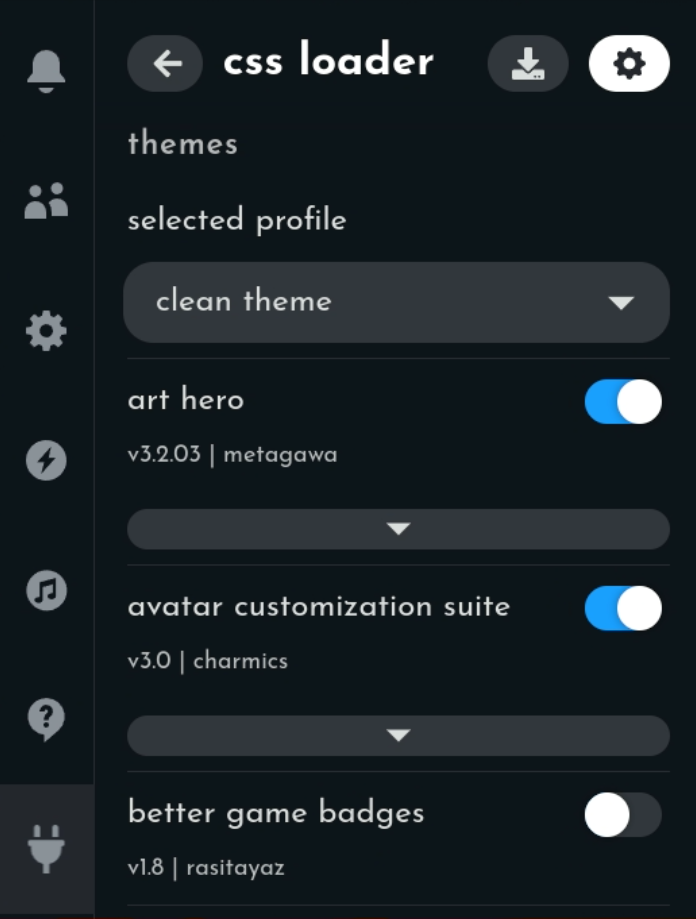
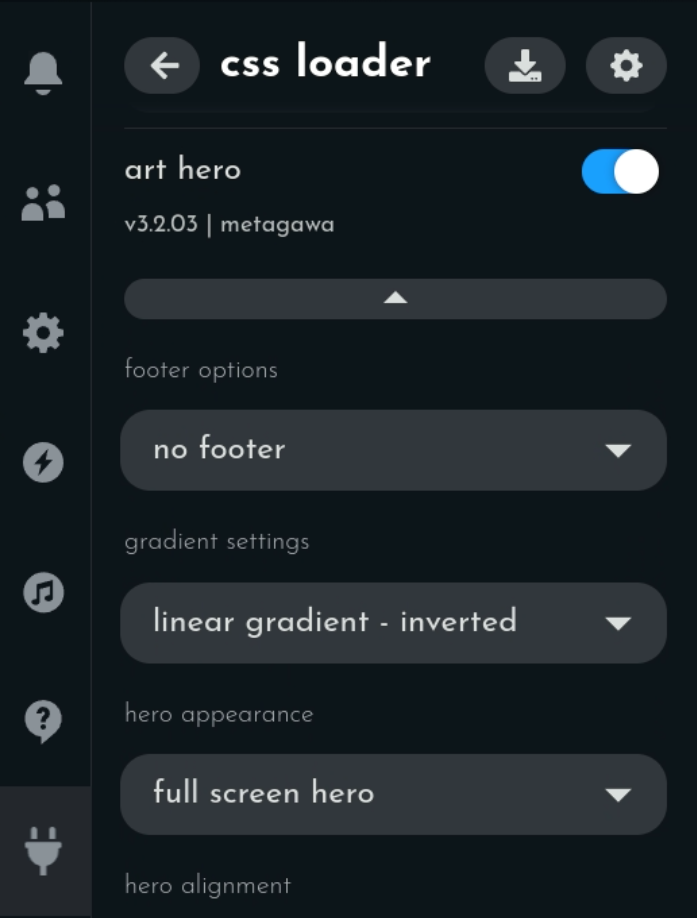
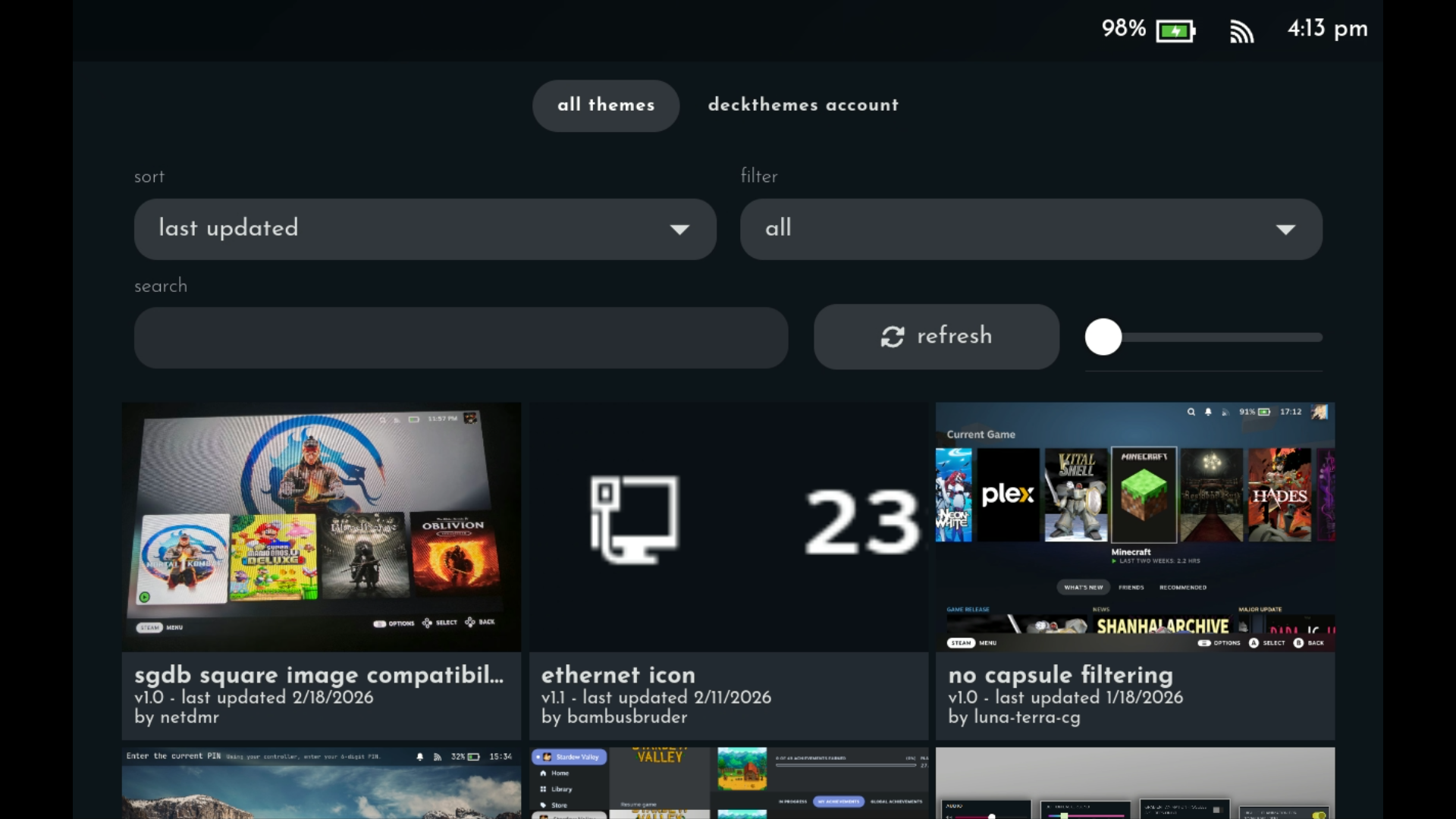
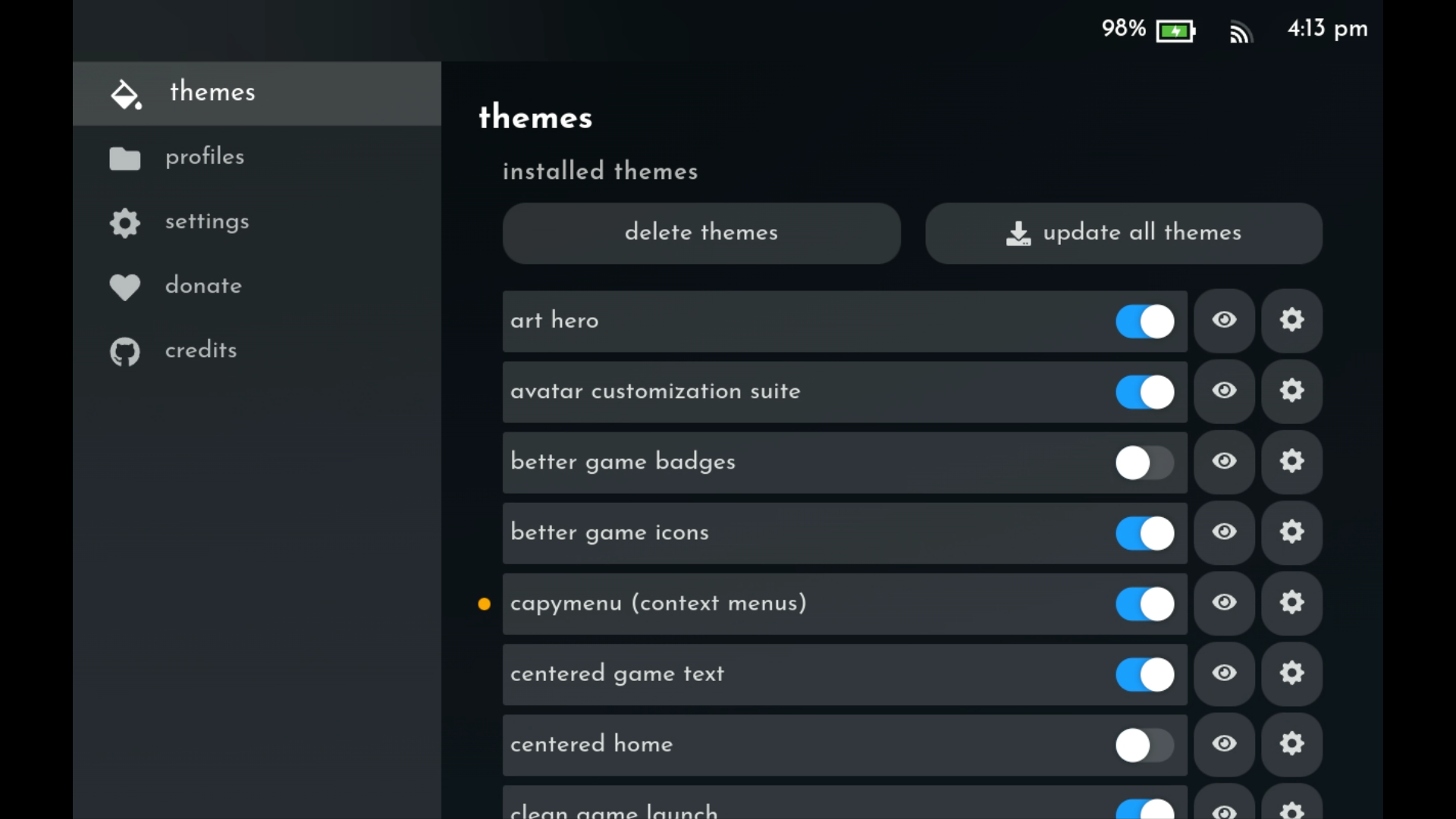
This is a really complex plugin and would probably need its own section to fully explain, but much like with the Animation Changer plugin, you can browse Game Mode themes and apply them here. CSS Loader has its own store with sub-plugins (mainly visual mods and themes that apply to the Game Mode UI.)
-
The Main CSS Loader Config:
-
-
CSS Loader: Single CSS Theme Options Expanded:
-
-
CSS Loader: Theme Store:
-
-
CSS Loader: Theme Manager:
-
-
- SteamGridDB
-
Apply custom posters and logos to non-Steam games.
-
This is absolutely crucial for non-Steam games as it allows you to add your own posters, logos and background (otherwise they'll just be blank grey boxes).
-
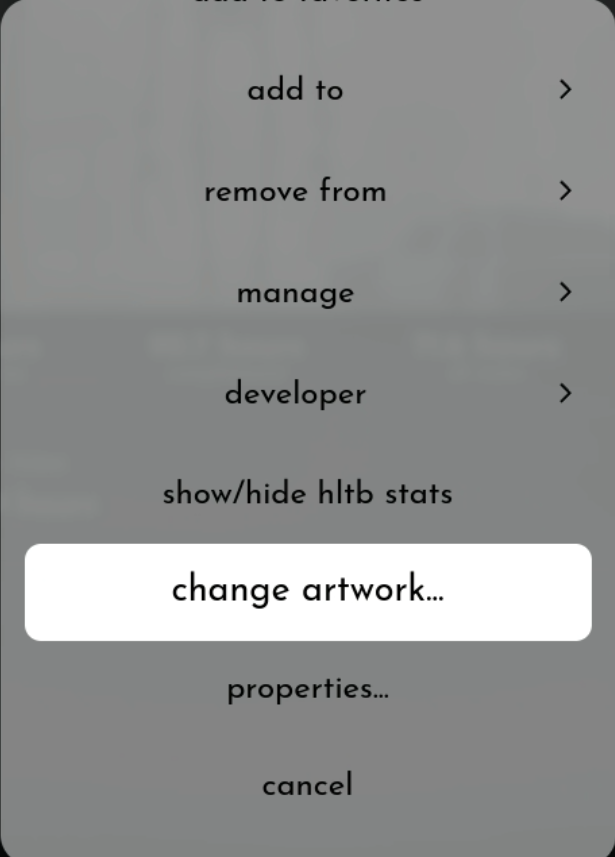
Once installed, this adds a Change Artwork... option to all games.
-
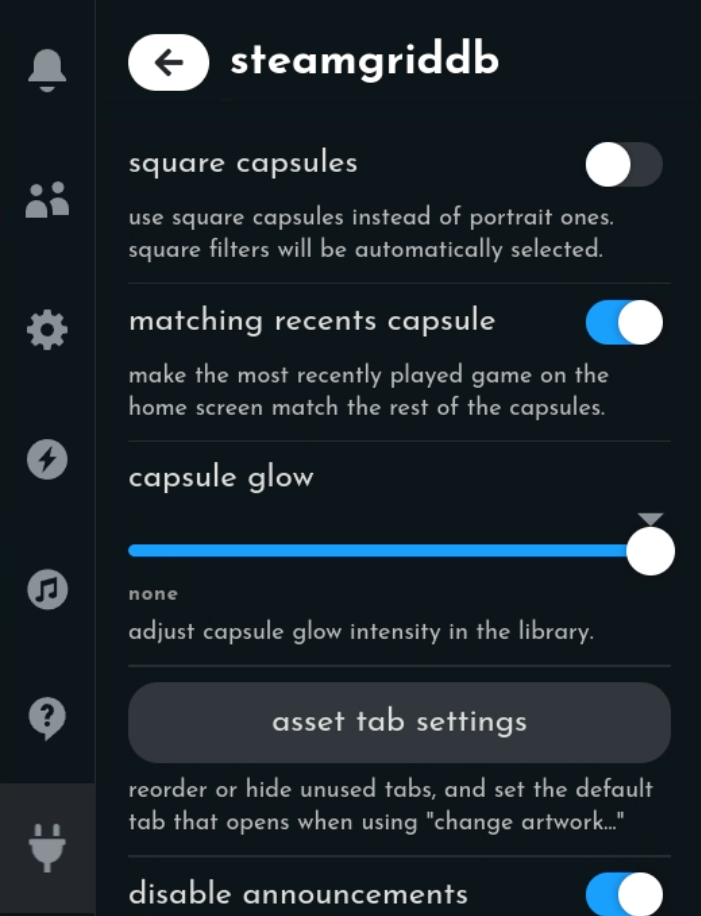
SteamGridDB Plugin Settings:
-
-
Change Artwork Option In Game Settings:
-
-
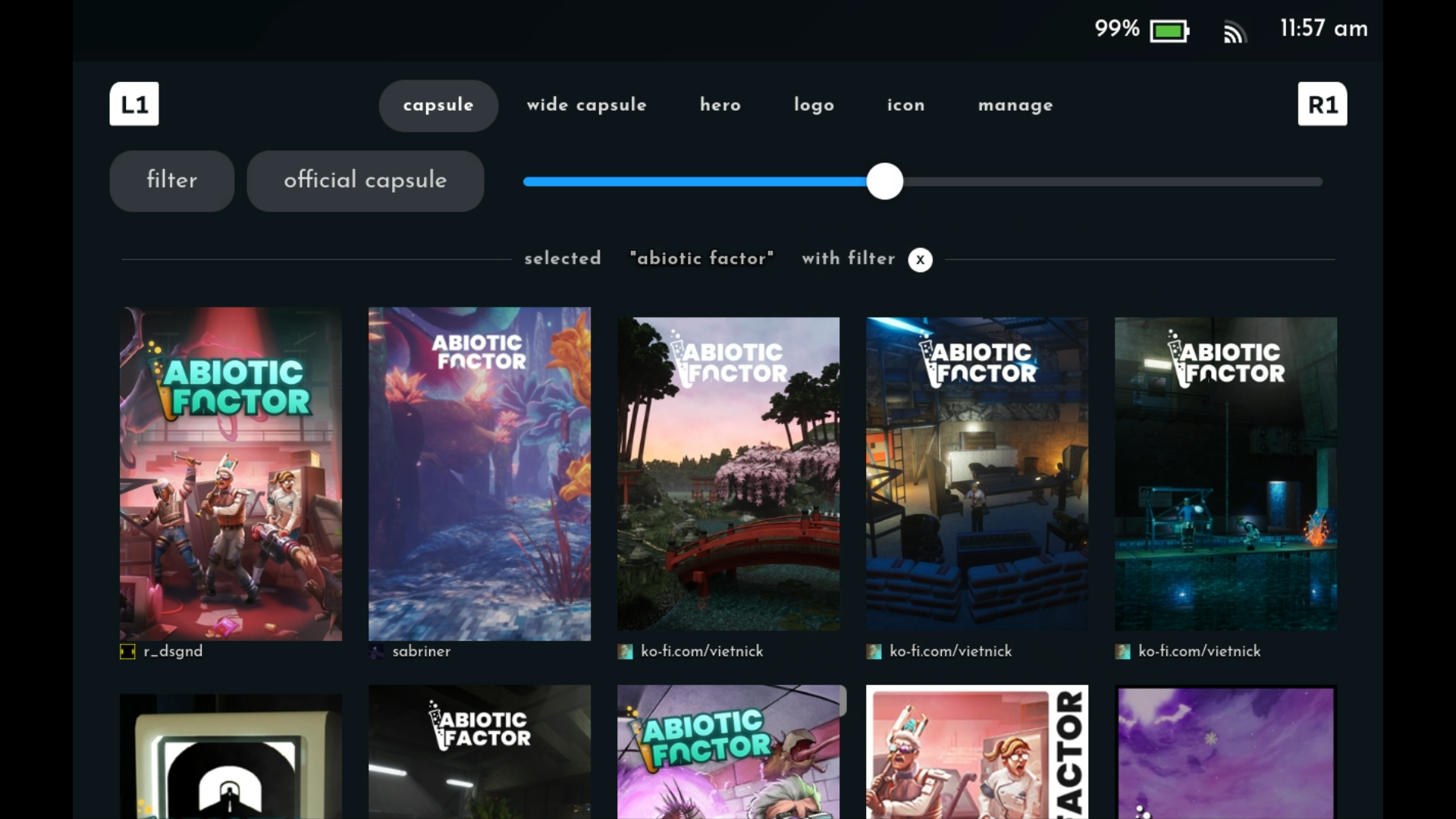
SteamGridDB Image Options:
-
-
- Tabmaster
-
Customize tabs in the "View More In Library" section.
-
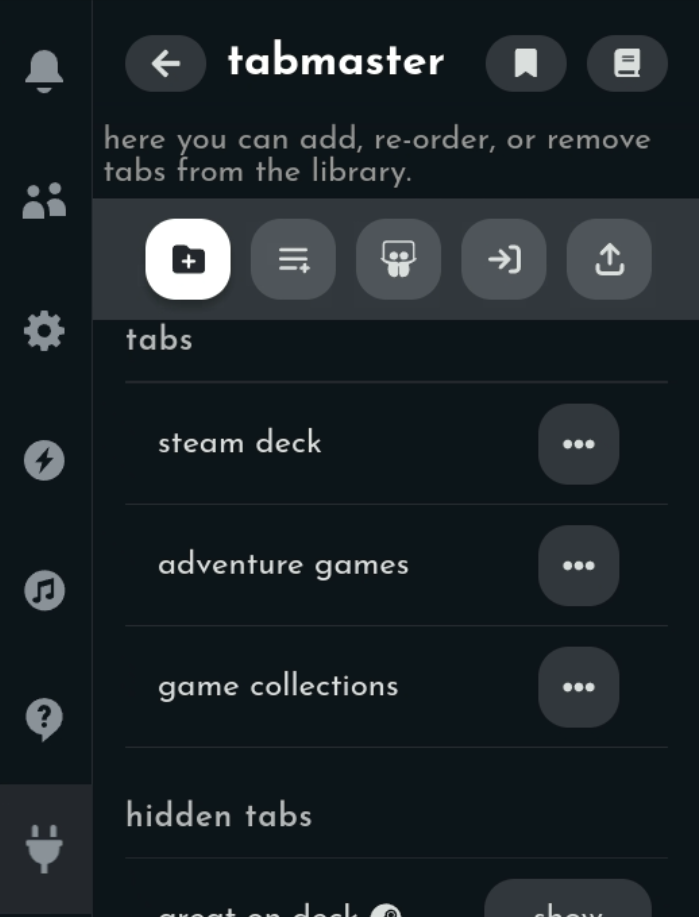
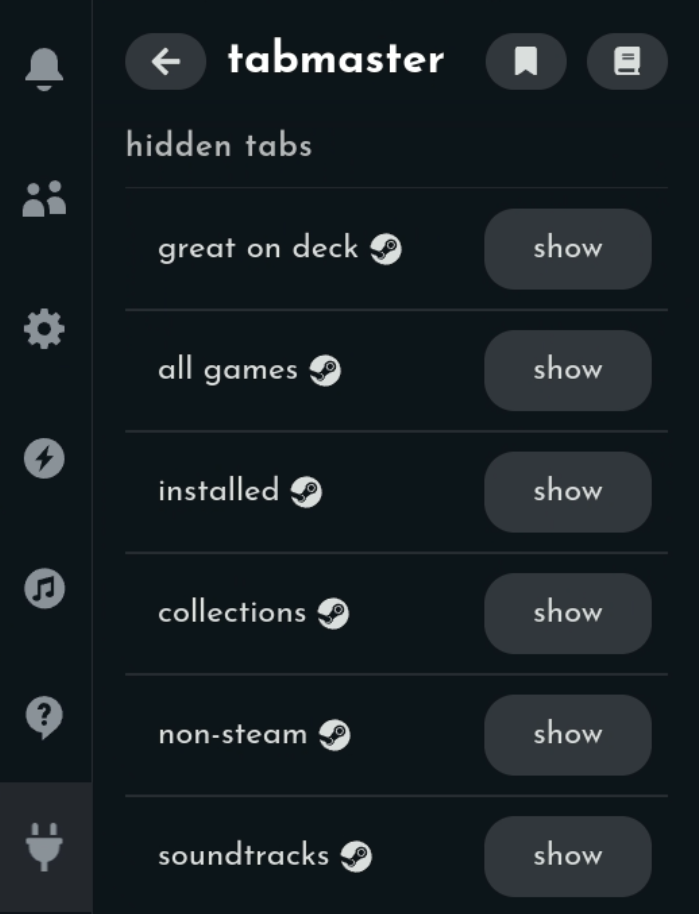
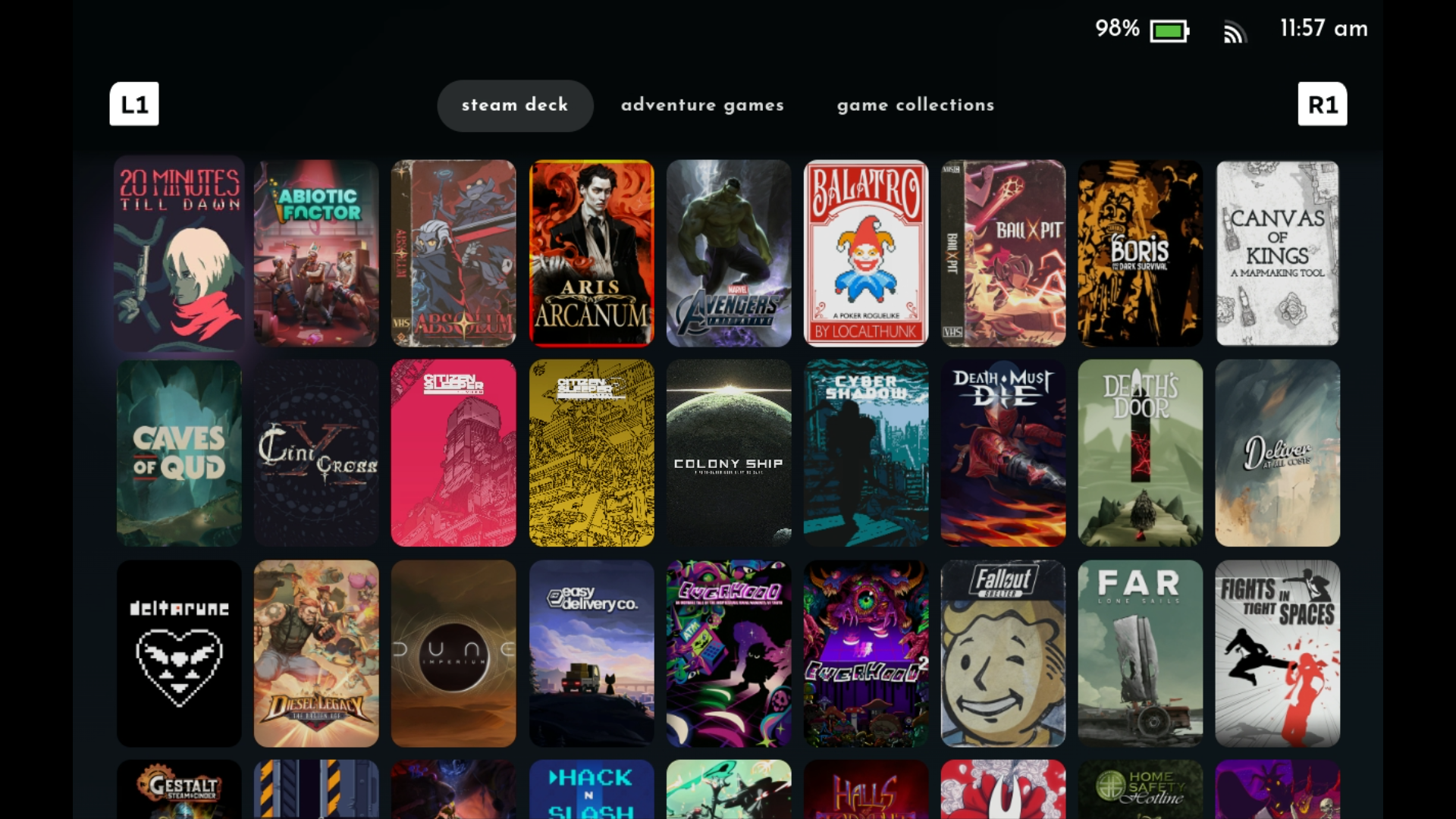
Tabmaster will basically group your games by Steam collection under the View More In Library section (at the far right end of the recent games list on the main Game Mode screen). You can also hide sections you don't care about, like Recommended or Favorites.
-
These correspond to collections I've added games to in Steam (Desktop Mode):
-
-
I've hidden all the tabs Steam adds to the Library by default:
-
-
And here's what it looks like in the Game Mode Library section:
-
-
- Storage Cleaner
-
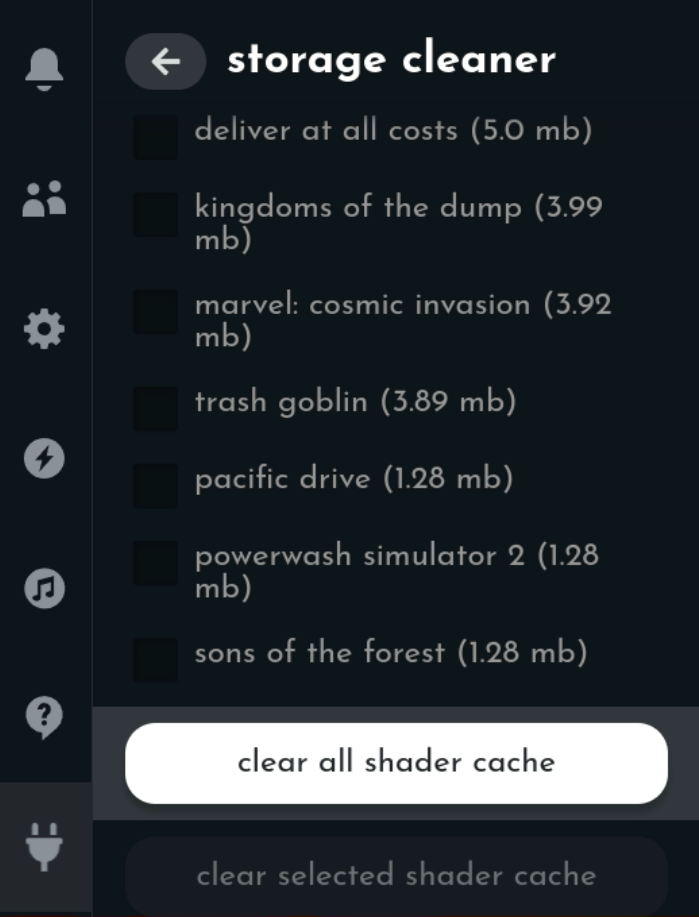
Recover storage space by clearing the shader cache.
-
Most modern Windows games will compile shader caches when you first launch them, which helps speed up subsequent launches. However, when you remove those games, the caches stick around, and the Steam Deck doesn't have a good way of managing them. Clearing the shader cache manually every once in a while can free up significant storage space (note that any games that still need shaders cached will just do it again on their next launch, which may take a few minutes to complete.)
Shader Cache vs. Compatibility Data
You are always safe to delete the shader cache.
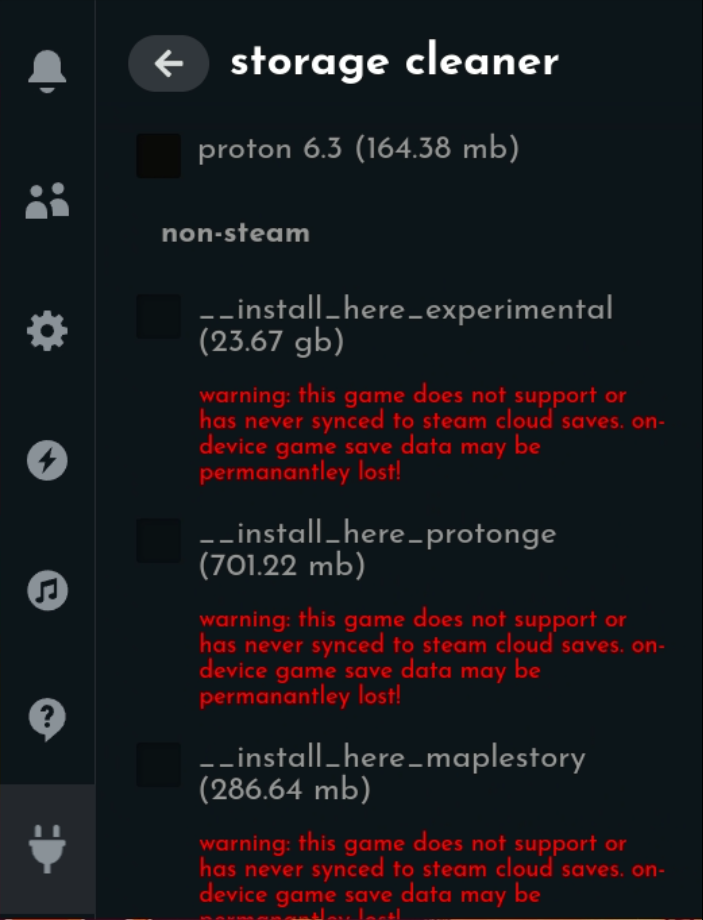
However, despite what this plugin tells you, compatibility data here includes your prefix, which contains your non-Steam-synced save data. DON'T DELETE THESE - you WILL lose your saved games if you do.
- These are safe to delete:
- These are all the Proton-related prefixes that Steam has installed itself, and are probably safe to delete:
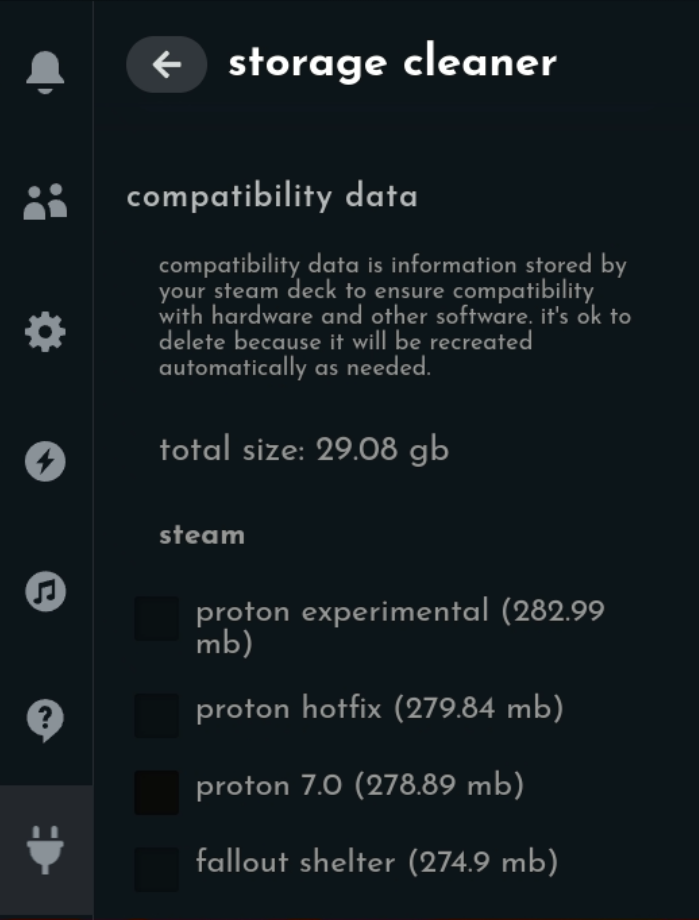
- These are the various non-Steam prefixes I've set up over the years. Experimental has almost all of my current save files, so I have to be careful not to delete it:
-
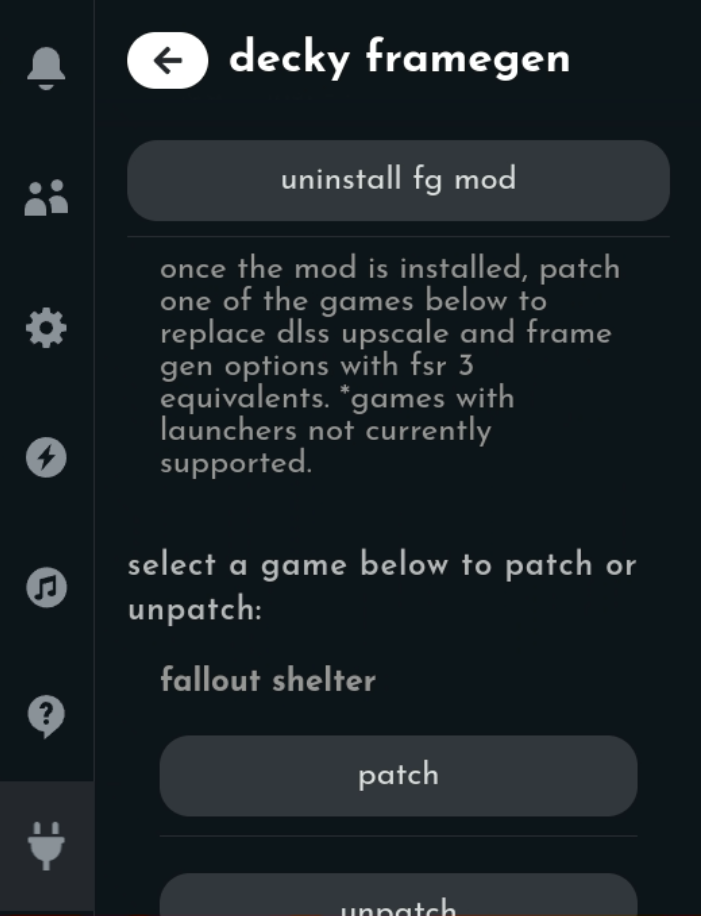
- Decky Framegen
-
Critical plugin for playing intensive games like RDR2 or Hogwarts Legacy.
-
I don't use this myself because I really only play smaller indie games on my Deck, but if you're planning on playing bigger games like Red Dead Redemption 2, this is a must. It basically adds framegen capability to the Steam Deck, so it can provide much higher quality and smoother gameplay with lower system requirements.
FrameGen Availability
This may or may not recognize non-Steam games.
- If a game is both detected and supported, you'll see it in this list. Just hit the Patch button to enable FrameGen for that game.