5. Controllers
Steam Input
One of the best things about the Steam Deck's Game Mode is that it offers access to Steam Input, an incredibly robust controller configuration tool.
Steam Input can emulate virtually anything: a regular gamepad, an old-school joystick, a mouse and keyboard, even a touchscreen. This makes playing old adventure games, or games that rely on WASD keyboard controls, possible.
The Steam Deck also offers some exclusive control options including gyro and trackpads.
Steam Input is configurable on a per-game basis, although once you have your default layout set, all games should default to using it.
It can also be configured on a per-controller profile, meaning that you can have different control layouts for any given game with any given controller (ie. the Steam Deck controller and a wireless Bluetooth controller).
Steam Input & Non-Steam Games
While it doesn't happen often, and I've always been able to get it working eventually, I've had some issues with the rare non-Steam game accepting Steam Input controls. Usually it's just a matter of restarting the Steam Deck and trying it again.
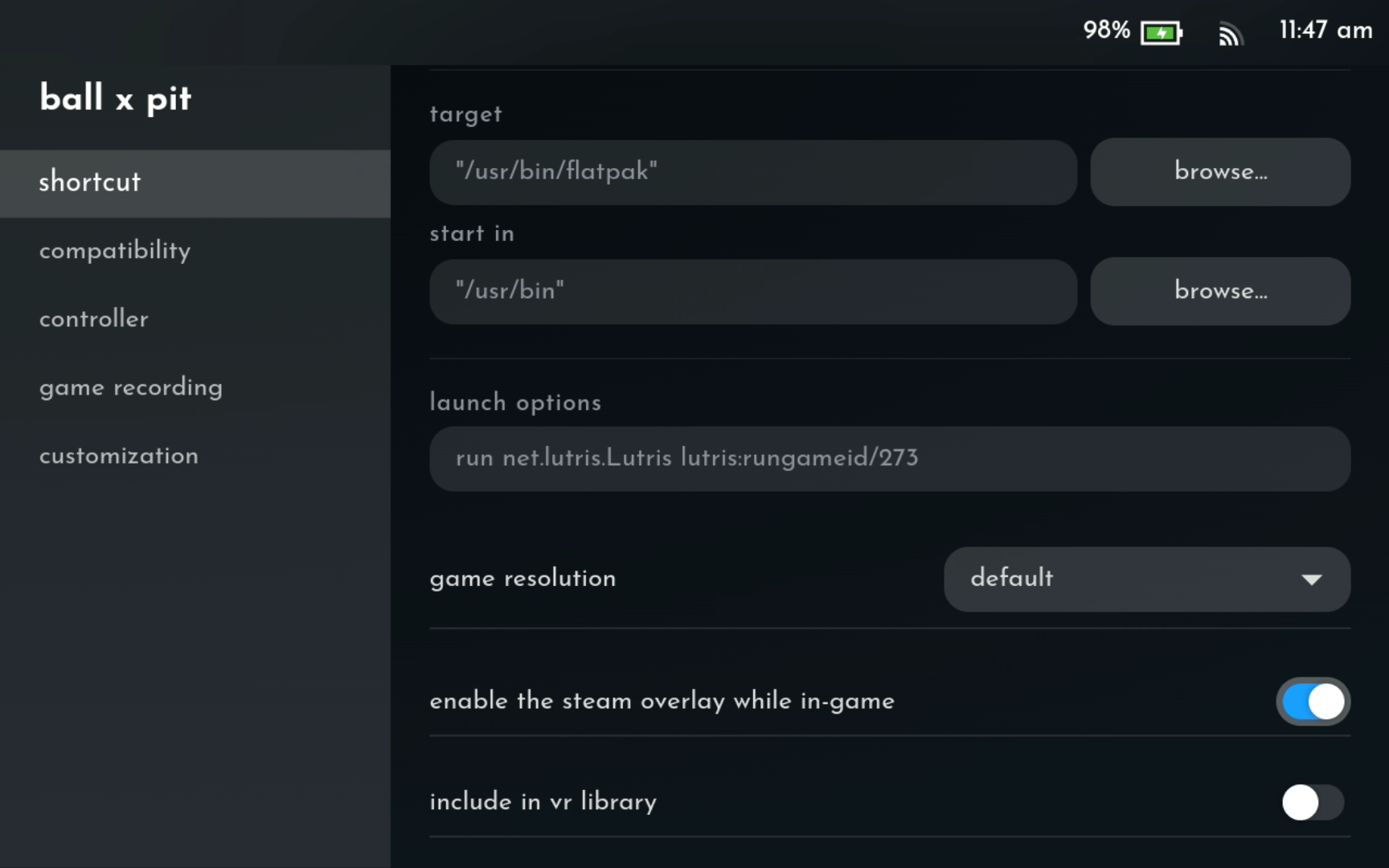
One common pitfall is if the Steam overlay isn't enabled for that game. In the game's details, click on the Gear icon on the right and check:
- Properties > Shortcut > Enable The Steam Overlay While In-Game: ON
Steam Input In Desktop Mode
If you want to use Steam Input (which is to say, if you want to use any controller, including the Steam Deck's actual controls), you NEED to be in Game Mode.
Steam Input is supposed to work in Desktop Mode, and for many Steam games, it does. For non-Steam games, though, Steam in Desktop Mode won't recognize them, and the default Desktop controller scheme will get applied instead.
Configuring Steam Input
Again, it shouldn't be necessary to do this for every game, but you may need to do it at least once:
- From Game Mode, select the game you want to play and go to its game page.
- Select the controller icon on the right.
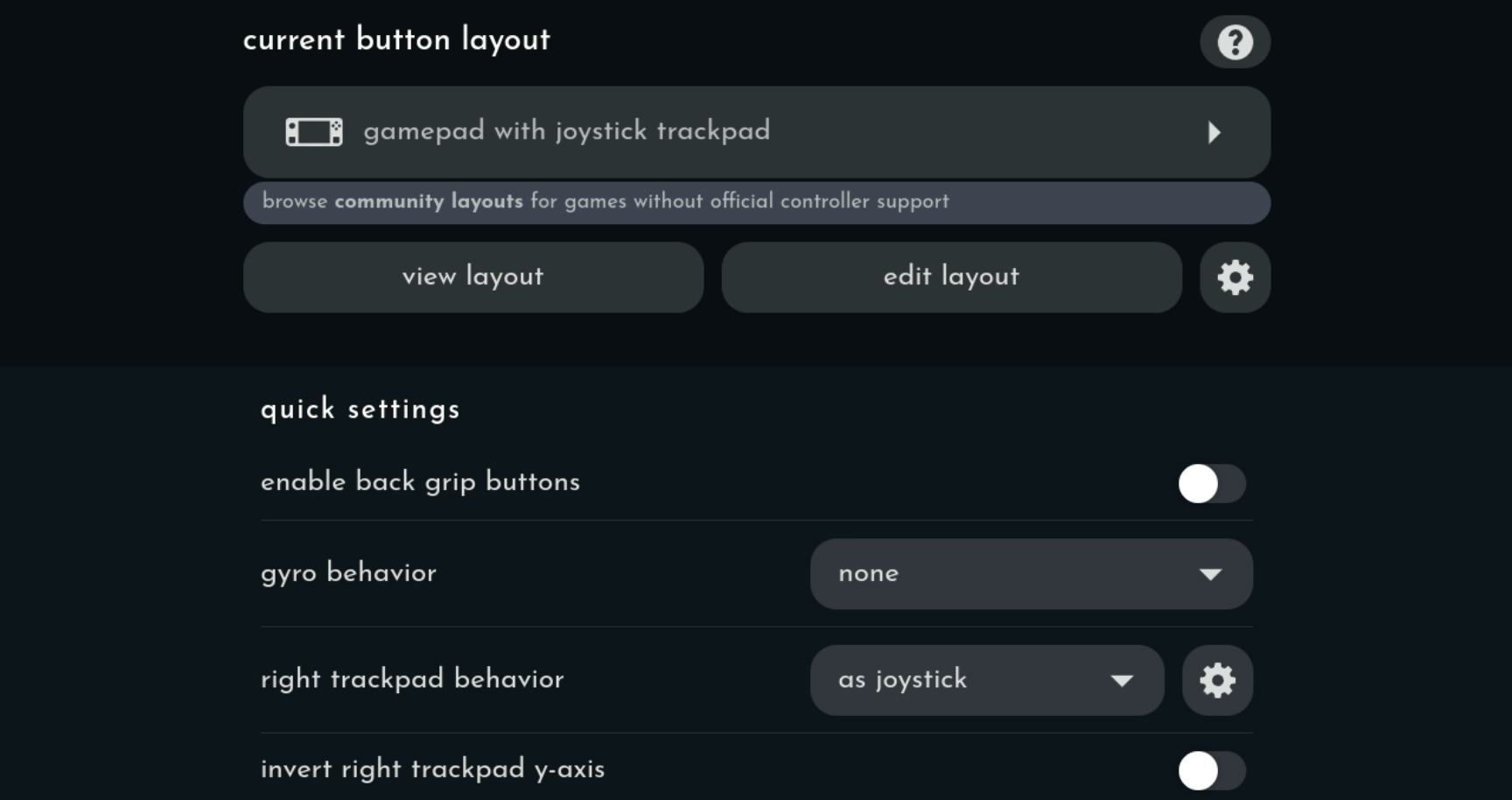
- This opens the Steam Input dialog, which shows:
- The current selected layout.
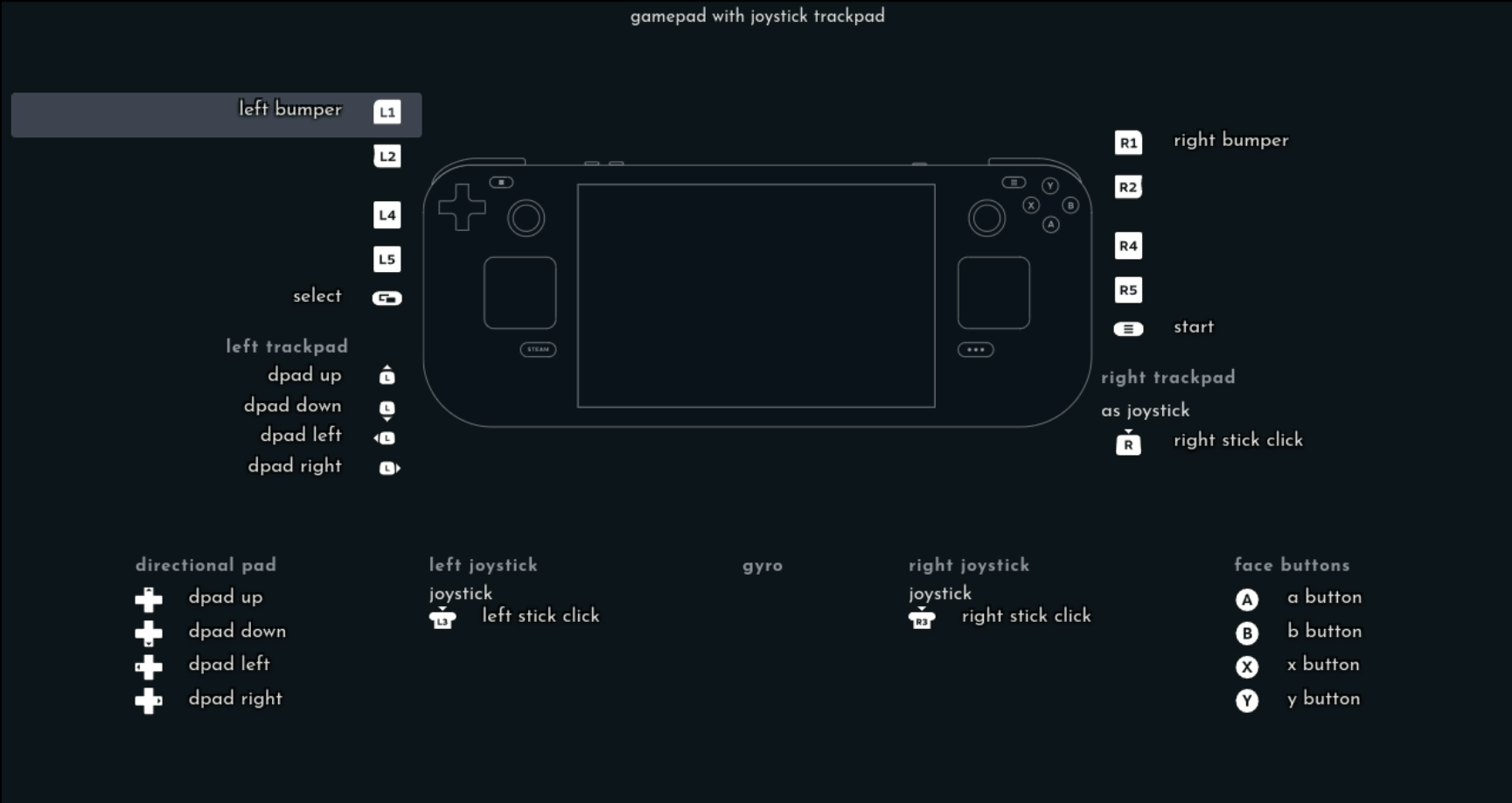
- An option to VIEW that layout's button assignment.
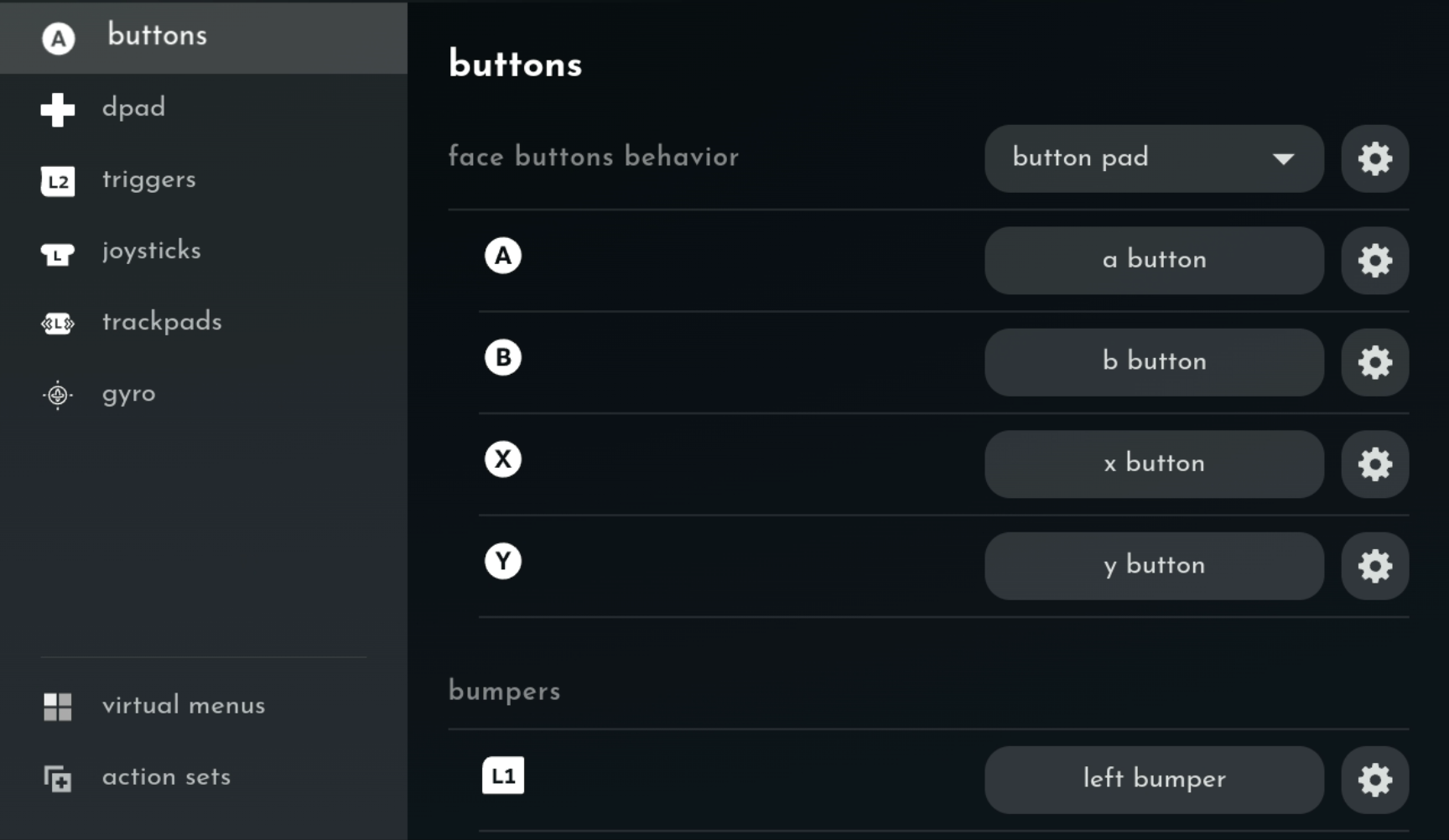
- An option to EDIT that layout's button assignment.
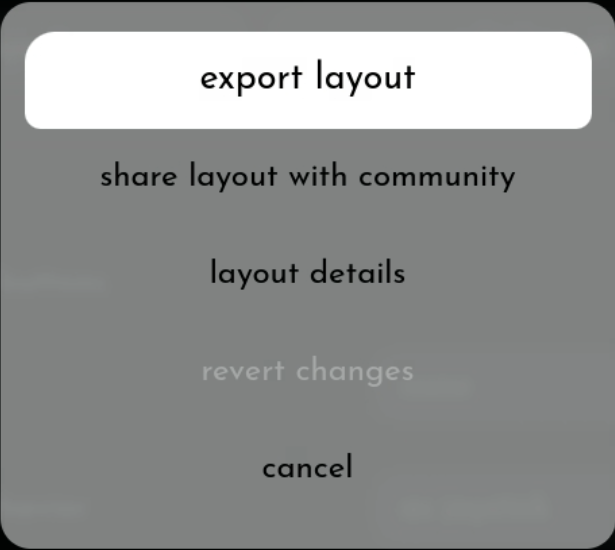
- Layout file management options (export, share layout, revert changes, etc.)
- Quick Settings, which we won't be concerned with here since they apply to specific scenarios.
The current layout should be Gamepad With Joystick Trackpad. This is what I use for 99% of games and it works without any additional finagling.
Steam Input Layout Options:
View Option:
Edit Option:
Layout File Management:
If you select the current layout, it should give you a new page with three sections:
- Templates: This is a list of controller templates built into SteamOS. At the very bottom of this list are any saved templates you've made yourself (for example, I had to create a left-handed mouse and keyboard template because there wasn't one already.)
- Community Layouts: These show up more for actual Steam games, although you will sometimes find layouts from other users for non-Steam ones.
- Search: This searches Community Layouts. Has never really worked for me.
You will either be using built-in templates or customizing them yourself to get them to work.
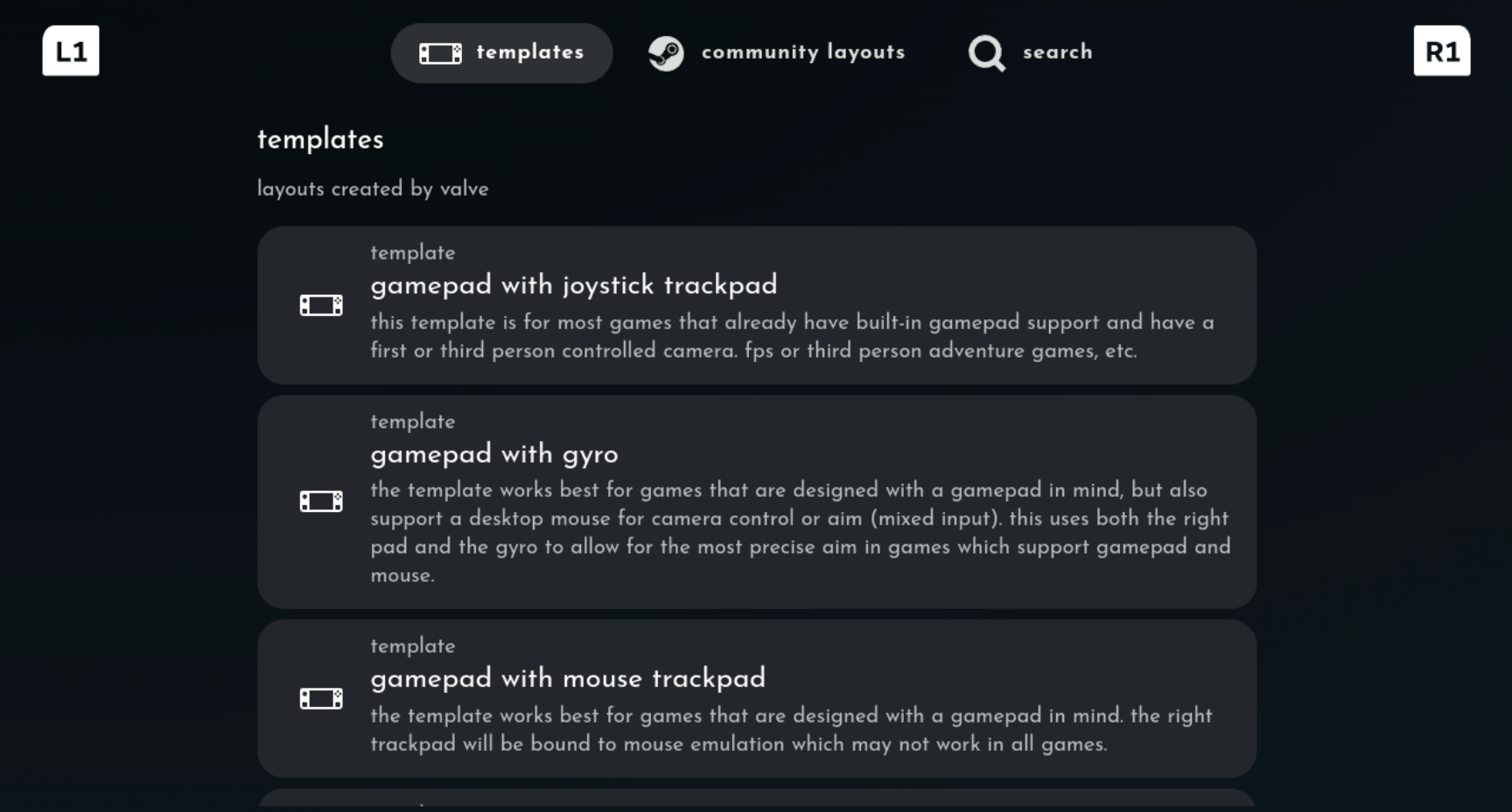
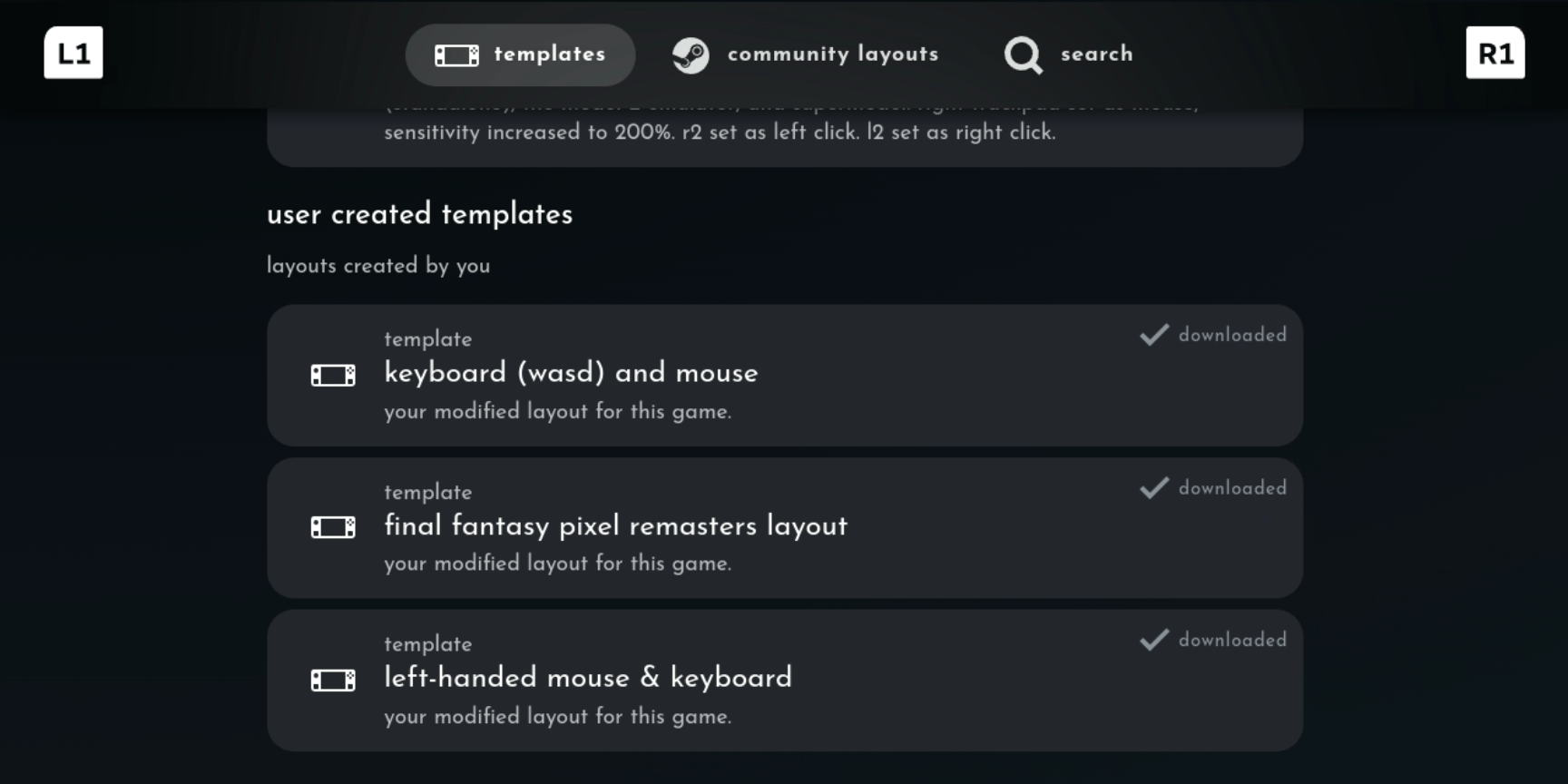
After confirming that Gamepad With Joystick Trackpad is set, try playing your game again. If the controls work, then you should be good to go.
Editing Steam Input
If it still isn't working, or if it IS working but the buttons aren't right or you just prefer to change them, go back to the Steam Input section for that game and select Edit Layout.
The genius of Steam Input is that it's exactly as complicated as you want it to be. If you just want to swap the A and B button, you can do that. If you want to map the right trigger to a left-mouse click or the Esc key, you can do that. You can create macros and radial menus that come up when you hold down a button, or buttons that do different things depending on context.
The Gamepad With Joystick Trackpad is programmed with the common "gamepad" button and stick assignments that most games should recognize and respect.
Back Buttons
There are also four back buttons - L4, L5, R4 and R5 - that are exclusive to the Steam Deck. These are not assigned by default, so you can play around with them and use them like hotkeys. This is great for RPGs like Baldur's Gate 3 where you might have potions or spells assigned to F-keys on a keyboard normally.
Some games - usually older ones - don't understand gamepad controls, and expect controls to line up with a keyboard or mouse instead. You can easily edit the Steam Deck's control scheme to adjust for this.
For example, in the list of templates, you'll see one called Keyboard (WASD) and Mouse. If you select this, you'll see the control scheme and assigned inputs change: the left joystick gets a WASD assignment, the right one is a joystick mouse, the A button is assigned Space, and so on.
From this layout diagram, press the X button to apply it. the current button layout will then change to Keyboard (WASD) and Mouse.
You can then edit this and change whatever keyboard-to-button inputs the game needs, or that you want.
Once you're happy with your changes, you can go to the Gear icon (to the left of Edit Layout) > Export Layout and save it as a user template.
Gyro
The Steam Deck has a gyrometer, which means you can use it as a kind of input: it will read your physical movements of the Deck itself and translate that to, for example, mouse movement.
This is mostly useful in FPS games where I have seen some people use it as their "look around" or aiming controls.
I don't actively use it but I did want to call it out.
Since it's hard to capture what this looks like in screenshots, here's a video of the different sections and assignment options in Steam Input:
Adding A Bluetooth Controller
This works basically like adding any Bluetooth peripheral:
- Put it into Bluetooth pairing mode.
- On the Deck, press the Steam button > Bluetooth.
The controller should appear in the "available to pair" list and you can select it to pair it.
You can then press the Steam button > Controllers and you should see two controllers listed here: the default Steam Deck Controller, and your new controller. If you need to, you can test and calibrate it here.
Once you've added it, you can go back to a game's Steam Input page, and at the very top you should see both controllers listed.
Any changes you make to one will apply only to that device, and disconnecting it will revert back to the built-in controller.
Other Devices
This would also apply to any other input devices you connect (keyboards, mice, etc.) In my experience, the Deck should automatically recognize a keyboard or mouse and treat them as such in both Game and Desktop modes.
Desktop Layouts
This is found under Steam button > Controller > Non-Game Controller Layouts, at the bottom.
I call this out because again, I had to configure this for left-handed use. If you don't need to modify it, you can skip this - just be aware that if you don't like the default desktop controls, this is where you can change them.