2. The Linux-To-Windows Game Pipeline
This next part is by far the most complicated stage, but once you get it, adding new games will be second nature.
Since the Steam Deck is running Arch Linux but most games you install will be Windows executables, you need some kind of translation layer between them. This is where Wine/Proton comes in: they function as a Windows emulator environment, allowing Windows executables to run almost natively (and efficiently enough that you'd never know they weren't native.)
There are a few ways to approach this (Bottles, direct Proton links, etc.), but my preference is to use Lutris as it handles a lot of the heavy lifting. As a result, the layers look like this:
- The Linux filesystem where a game's files are actually stored, ie.
/home/deck/Games/Hollow Knight/hknight.exe Lutris, which is kind of a manager that sends the exe to the Proton\Wine emulator.- Heroic Launcher, replacing my prior Lutris recommendation, which manages game executables.
- Proton, which creates a fake Windows OS environment to run out of (the game's prefix).
- Steam, which has a shortcut to Lutris (but which appears in Game Mode as a game itself.)
Note that in theory, you could run games straight from Heroic Launcher, but then you would miss out on all the Steam benefits like its input mapping, launcher UI, and so on.
Other Game Managers
I previously recommended using Lutris, but I'm updating this to Heroic Launcher instead, thanks to its ease of use and UI that massively improves upon what Lutris has to offer.
Lutris is still a viable alternative, if for whatever reason Heroic doesn't fit your needs - Lutris has more advanced configuration options, whereas Heroic tries to autoconfig most set-ups.
Another option is Bottles. Bottles and Lutris work more or less the same way, so you're fine with either option. Bottles is a bit more polished-looking, especially if you're coming from a macOS environment, and maybe a bit more noob-friendly, but it's been a little less stable in my experience than Lutris and much less stable than Heroic.
When I originally set up a library of non-Steam games on my Steam Deck, I used an elaborate, time-consuming system wherein I had to create a prefix manually, add games directly to Steam, and included a customized launch command that tied the game's .exe to Proton and the existing prefix path.
For obvious reasons, I don't recommend doing this.
Prefixes
As mentioned, prefixes are slimmed-down Windows OS environments that Proton creates and runs out of. You need a prefix for Proton to be able to run Windows games.
There are two ways to approach prefixes:
- Use one prefix for all games. The benefit is that this cuts down (slightly) on storage space, but it runs the risk of game conflicts. This is what I do and I've never run into an issue, but there's always a first time for everything, and it would screw up all of your games if it did happen. This would be something like /home/deck/Games/.prefix.
- Create a new prefix for each game. This is the "right" way of doing things, as it keeps different games from potentially interfering with each other. This would be something like /home/deck/Games/Heroic/(game name)/prefix.
Lutris Heroic and Proton work together when you create a game and add the prefix path to populate that path with the actual Windows files needed. Note that Heroic will combine all manually-added games to a single prefix (/home/deck/Games/Heroic/Prefixes/sideload) by default.
Here's an example of a prefix folder that's been populated by Proton:
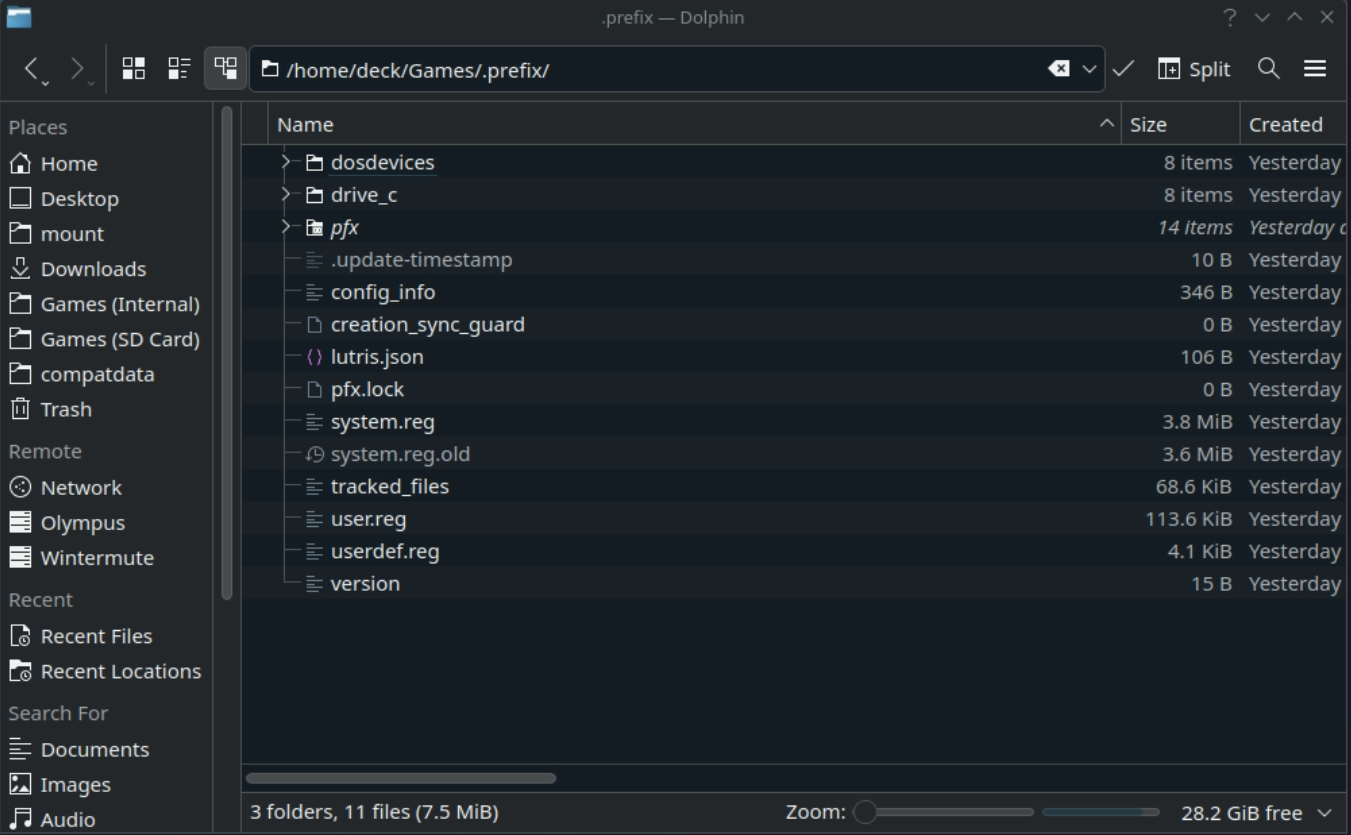
TLDR; Paths You Need To Know
- Your User Folder: /home/deck
- Default Download Folder: home/deck/Downloads
- Internal Game Install Path: /home/deck/Games
- MicroSD Game Install Path: /run/media/mmcblk0p1/Games
- Prefix Path: /home/deck/Games/Heroic/Prefixes/sideload
- Ludusavi Backups: /home/deck/Games/.ludusavi-backup
Heroic Launcher
Heroic Launcher has a bit more prep required than Lutris, but it pays off in the long run by simplifying the entire process of installing games, especially if you have a ton of games you want to add at once.
Installing Heroic Launcher
- In the Discover Store, search for, install and run Heroic Launcher.
- Go to Wine Manager in the left-side panel.
- Make sure the GE-Proton tab is selected and download GE-Proton10-34.
- Go to Settings > General.
- Select your preferred theme and then scroll down to the list of checkboxes.
- Only check the following:
- Exit To System Tray
- Start Minimized
- Minimize Heroic After Game Launch
- Use Dark Tray Icon (optional)
- Add Games To Steam Automatically
- Only check the following:
- Under Game Defaults > Wine:
- Set the default Wine version to GE-Proton10-34.
- Under Game Defaults > Other:
- Uncheck everything except:
- Use Steam Runtime
- Uncheck everything except:
-
Under Game Defaults > GameScope:
-
You will probably get a message that GameScope isn't installed, or the version doesn't match. The current required version of GameScope as of this writing is 25.08, which you can install by running:
flatpak install org.freedesktop.Platform.VulkanLayer.gamescope/x86_64/25.08 -
Once GameScope is installed, you might need to restart Heroic. You can leave the default GameScope options as-is for now.
- Under Advanced:
- Obtain and save your SteamGridDB.com API token here. If you don't have one already, you'll need to sign up for an account. You should then find your API token under Profile (in the top right corner) > Preferences > API.
- Check Allow Installation Of Games With Broken Or Denied Anticheat.
- NOTE: If you plan to play any sideloaded online multiplayer games, keep this unchecked. Otherwise, check it - Heroic will be less aggressive about blocked cracks and mods.
-
There is one more setting you need to change in the Steam Deck's permissions for Heroic's flatpak to work right:
- Open System Settings.
- In the upper left, type in
flatpakand select Flatpak Permissions. - Find Heroic in the list and select it.
- Under the Filesystem Access section, click on Add New....
- Enter the following paths one by one, ensuring they have Read/Write access:
- /home/deck/Games
- /run/media/mmcblk0p1/Games
- /home/deck/Games/Heroic/Prefixes/sideload
- /home/deck/Games/Heroic/Prefixes/shared
- Any other game install or prefix paths you might be using.
- Click Apply, close Settings, and re-open Heroic.
There are a few sections in Heroic - Login, Stores and Deals - that you're free to use if you want, but I won't cover them here. The only section we're concerned with will be Library.
Redistributables
Most games require some additional redistributable packages, or redists, to run. This is pretty standard and would be required in Windows as well.
Since you're creating a tiny Windows environment to run games out of (aka your prefix), you need to make sure they have all the necessary dependencies.
One benefit of using a single prefix is that you only ever have to install these once. If you use separate per-game prefixes, you'd need to install them every time you install a game.
All-In-One Redist Installer
The easiest way to set this up is to use an All-In-One (AIO) Redist Installer.
Download this AIO installer and save it to /home/games/Downloads/.
Hold onto this for now - I'll explain how to install it in the next section.
ProtonUp-QT
ProtonUp-QT is no longer needed with Heroic Launcher.
There are a couple of ways to install Proton, but I recommend ProtonUp-QT.
- Open Discover and search for
ProtonUp-QT. - Select it and click on Install in the top right.
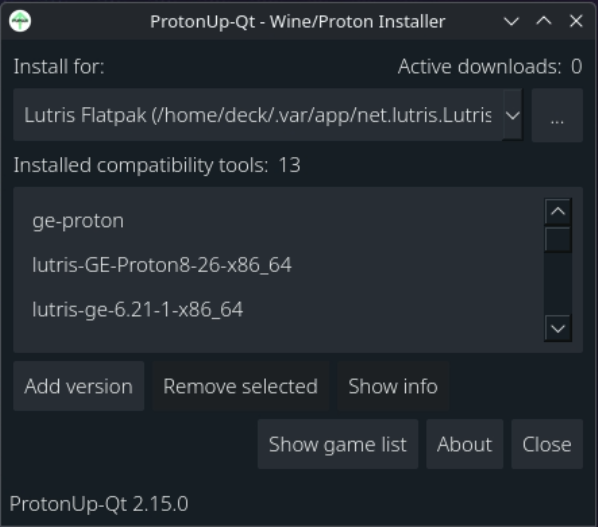
- Open ProtonUp-QT. Under Install For, Select: Lutris Flatpak
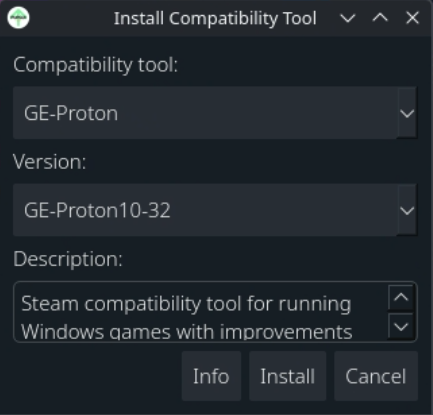
- Click on Add Version.
- Choose GE-Proton10-32 and Install.
 |
 |
Proton is actually Steam's own interpreter, so you're always going to have more than one Proton installed. GE-Proton (or GloriousEggroll) is a fork that makes a ton of compatibility improvements and is the recommended one to use.~~
I'm leaving this in because it is still useful information, especially if you still plan to use Lutris. But Heroic really does away with the need for a separate Proton Manager, so you can skip this if you're going to use that manager.
Lutris
Lutris has been retired in favor of Heroic Launcher.
Search for and install Lutris from the Discover store.
Open it once in case it needs to do any initialization, and then close it.
Open Konsole and run these commands:
(Type in your password and press Enter.)
And if you have a microSD card:
This gives Lutris permission to access your filesystem. Note that the first command might not be necessary, as /home/deck is not as locked-down as the rest of the SteamOS environment, but you'll definitely need to run the second one if you have external storage.~~